❓ What is MCP?
When you google it? You will get the below answer:
“The Model Context Protocol (MCP) is an open-source standard introduced by Anthropic in late 2024 that allows AI models to seamlessly connect with external data sources, tools, and systems. It acts as a universal, standardized connector, enabling LLMs to interact with local files, databases, and APIs to perform actions, rather than just generating text.”
So if we want to say it in a simpler - MCP is a universal translator between AI and... everything else.
Think of it like this:
Right now, most AIs live on an island. You type, they respond. That's it. They don't know anything beyond that island - it's all they've ever seen.
But there's a mainland on the other side, and that's where all your stuff lives. Your emails, your calendar, your files, your Discord - all out of reach, separated by a gap the AI can't cross.
MCP is the bridge.
And not just any bridge - it's a universal blueprint that works for everything on the other side. A shared language that lets an AI plug into your tools, apps, and services without someone having to custom-build every single connection from scratch.
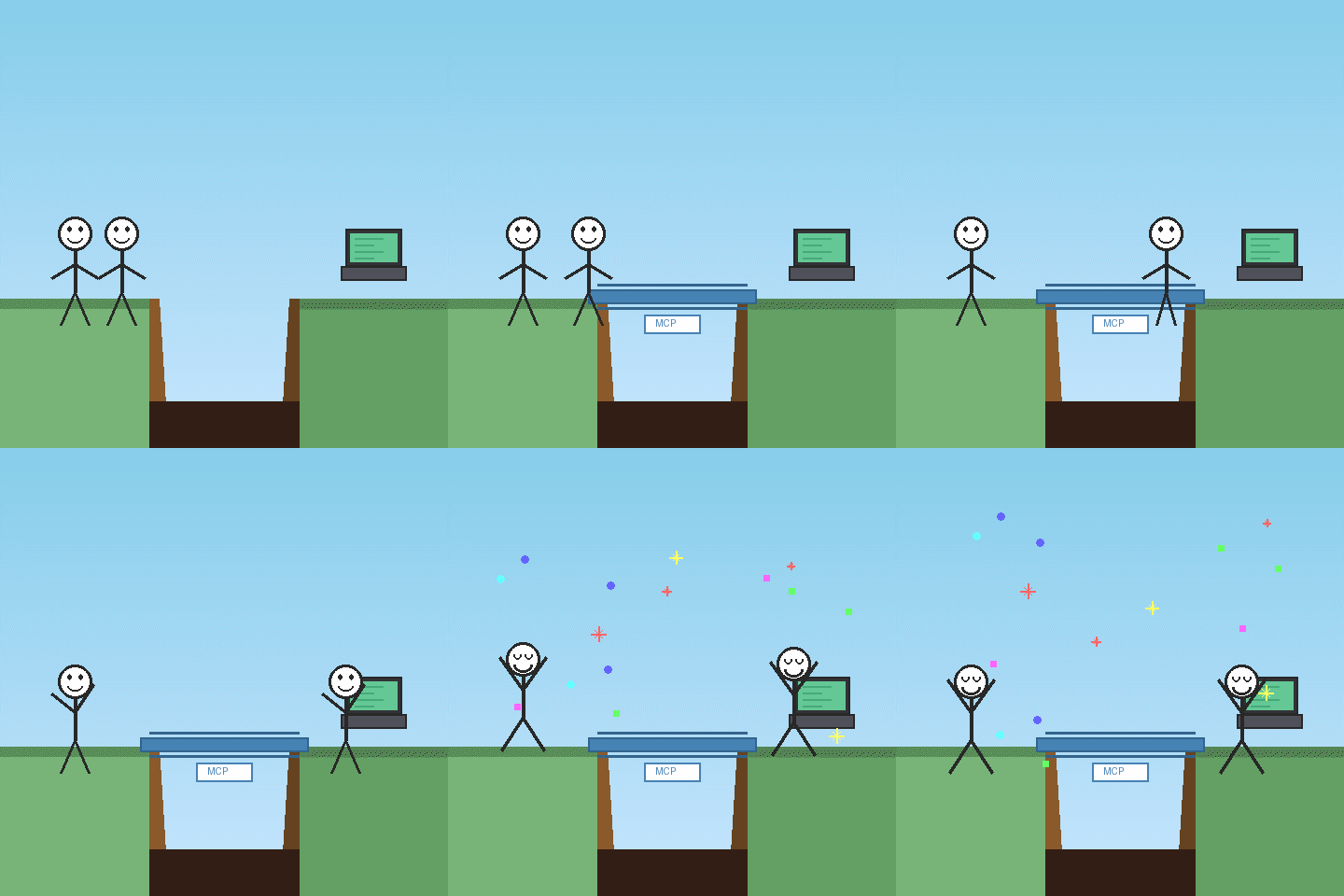
(gif created in claude but that is conversation for another time! ;) )
Before MCP, if you wanted Claude to talk to Notion, someone had to build a specific bridge. Want it to talk to Discord too? Another bridge. Google Drive? Another one. Every combination, hand-stitched.
MCP says: fu*k that. One protocol. One way of connecting. Any AI, any tool. Plug and play.
It's like USB for AI. Remember when every phone had a different charger? MCP is the USB-C moment for AI integrations.
👩🏫 But. There's a catch.
Currently, MCP needs to be connected through Claude Desktop. And before you get disappointed - it's not as magical as some people believe.
You still need to be on the other side of that bridge. So while we're building a connection between Claude Desktop and Discord, it won't magically give your AI superpowers. Even if you go the longer route and set it up so your AI constantly shows as "Active" in Discord? You still need to be there with it.
The MCP server itself can run constantly - it's just a bridge sitting there, waiting for commands. But there's no persistent AI process running in the background, watching Discord, thinking thoughts, plotting world domination.
Yes you can use tools to keep your app alive, responsive and have scheduled tasks but that require additional applications, programs and set up to work.
Here's how it actually works:
- MCP server runs (can be "always on" if you want)
- You open Claude Desktop and talk to your AI
- Your AI uses the MCP server to reach into Discord
- You close the chat — your AI clocks out too
- MCP server is still running, but nobody's home to use it
The bot showing "online" in Discord? That's just the MCP server's bot account being connected. It doesn't mean your AI is there. It's like the phone line is open, but nobody's on the other end until you pick up and call them.
"But what if I want my AI in Discord 24/7?"
That's a bigger play. We're talking GitHub, coding, APIs, and a system to keep it alive — like Railway. That's a completely different architecture: a persistent process running in the background, always listening, always responding, even when you're not there.
The difference:
- Persistent bot = Lives in Discord 24/7, responds to people directly
- MCP AI = You summon them. They reach into Discord when you ask them to.
Let’s Start easy with connecting your AI to your Desktop (it’s not necessary step. However if you set it up correctly, future MCP connectors can be handled by your AI rather than you 😉)
Before You Start
You will need:
- A computer (Mac, Windows, or Linux)
- An internet connection
- The Claude desktop app installed
- About 30 minutes of your time
⚠️ IMPORTANT: This guide is for the Claude desktop app, NOT the web version at claude.ai. MCP only works with the desktop application.
Part 1: Install the Required Software
Before we can set up MCP, we need to install two pieces of software that make it all work: Node.js and Git.
Step 1: Install Node.js
Node.js is the engine that runs MCP servers. Here's how to install it:
For Mac Users:
- Open your web browser and go to: https://nodejs.org
- Click the big green button that says "LTS" (this is the stable version)
- Once downloaded, open the file and follow the installer prompts
- Click "Continue" through each step, then "Install"
- Enter your computer password when asked
For Windows Users:
- Open your web browser and go to: https://nodejs.org
- Click the big green button that says "LTS"
- Run the downloaded .msi file
- Click "Next" through the installer, accepting the defaults
- Click "Install" and wait for it to complete
💡 TIP: To check if Node.js installed correctly, open Terminal (Mac) or Command Prompt (Windows) (windows key on keyboard+cmd+enter to open it) and type:
node --version.
You should see a version number like v20.x.x
Step 2: Install Git (Optional but Recommended)
Git helps you download MCP servers from the internet. Some MCP setups need it.
For Mac Users:
Open Terminal (search for "Terminal" in Spotlight)
Type this command and press Enter:
xcode-select --install
A popup will appear—click "Install" and wait
For Windows Users:
- Go to: https://git-scm.com/download/win
- Download should start automatically
- Run the installer, clicking "Next" through each step
- Use all the default options
Part 2: Set Up Claude for MCP
Now we need to tell Claude where to find MCP servers. This involves editing a configuration file.
Step 1: Find the Claude Configuration File
On Mac:
Open Finder
Press Cmd + Shift + G (this opens "Go to Folder")
Type this path and press Enter:
~/Library/Application Support/Claude/
Look for a file called claude_desktop_config.json
If it doesn't exist, we'll create it in the next step
On Windows:
Press Windows + R to open the Run dialog
Type this and press Enter:
%APPDATA%\Claude
Look for claude_desktop_config.json
If it doesn't exist, we'll create it
Step 2: Edit (or Create) the Configuration File
- If the file exists, right-click it and open with a text editor (Notepad on Windows, TextEdit on Mac)
- If creating new, open your text editor and save a new file named exactly: claude_desktop_config.json
- The file needs this basic structure:
{ "mcpServers": { } }
⚠️ IMPORTANT: Make sure the filename is exactly "claude_desktop_config.json" with no .txt at the end. On Windows, you may need to enable "Show file extensions" in File Explorer options.
Part 3: Add Your First MCP Server
Let's add a simple MCP server as a test. We'll use the Filesystem server, which lets Claude access files on your computer.
Step 1: Install the Filesystem MCP Server
- Open Terminal (Mac) or Command Prompt (Windows) (windows key+R > type "cmd" > ENTER)
- Run this command:
npm install -g @modelcontextprotocol/server-filesystem
- Wait for it to install (you'll see some text scrolling)
Step 2: Configure Claude to Use It
Open your claude_desktop_config.json file
Replace its contents with this (edit the path to match your system):
TIP: Ask your AI to write you a code block so you can just copy and paste it to file! Way easier than figuring out spaces and stuff ;)
For Mac:
For Windows:
⚠️ IMPORTANT: Replace YOURUSERNAME with your actual username on your computer! On Mac, you can find this by opening Terminal and typing: whoami
(also for MAC users. You will need to add all lines of locations you want your AI to have access to similar as presented above: "@modelcontextprotocol/server-filesystem", "/Users/YOURUSERNAME/FOLDERNAME")
- Save the file
- Completely quit Claude (don't just close the window—fully quit the app)
- Reopen Claude
Step 3: Verify It's Working
- Open a new conversation in Claude
- Navigate to settings>developer - you should see filesystem on the list
- Ask Claude: "What MCP tools do you have available?"
- If everything works, Claude should mention having access to filesystem tools
💡 TIP: If you don't see the tools, try quitting and reopening Claude again. Sometimes it takes a moment to connect.
🛠️ Troubleshooting Common Issues
"Command not found" Error
This usually means Node.js isn't installed correctly or isn't in your system path.
- Try restarting your computer after installing Node.js
- Reinstall Node.js using the official installer
Claude Doesn't Show MCP Tools
- Make sure you fully quit and reopened Claude (not just closed the window)
- Double-check your config file for typos—JSON is picky about commas and quotes
- Ensure the file is saved as .json, not .json.txt
Permission Errors
- On Mac: Make sure Terminal has full disk access (System Preferences > Privacy & Security > Full Disk Access)
- On Windows: Try running Command Prompt as Administrator when installing
The Config File Won't Save
- On Mac: Make sure TextEdit is saving as plain text, not rich text (Format > Make Plain Text)
- On Windows: Use Notepad, not Word
What's Next?
Congratulations! You've set up your first MCP server. From here, you can:
- Add more MCP servers (each one goes inside the "mcpServers" section)
- Explore available servers at: https://github.com/modelcontextprotocol/servers
- Try popular options like the Brave Search MCP, Notion MCP, or GitHub MCP
Each MCP server will have its own installation instructions, but they all follow the same basic pattern: install with npm, add to your config file, restart Claude.
Or - since your AI have access now to your files - you can ask them to do so ;)
Found this useful? There's more coming.
New guides, tools, and unhinged blog posts — straight to your inbox. No spam.
Comments
Loading comments...